
LINE
Send selected document activity and recurring draft alerts to the LINE account you already check.
 MANA
MANAConnect LINE
- 1
Start the connection
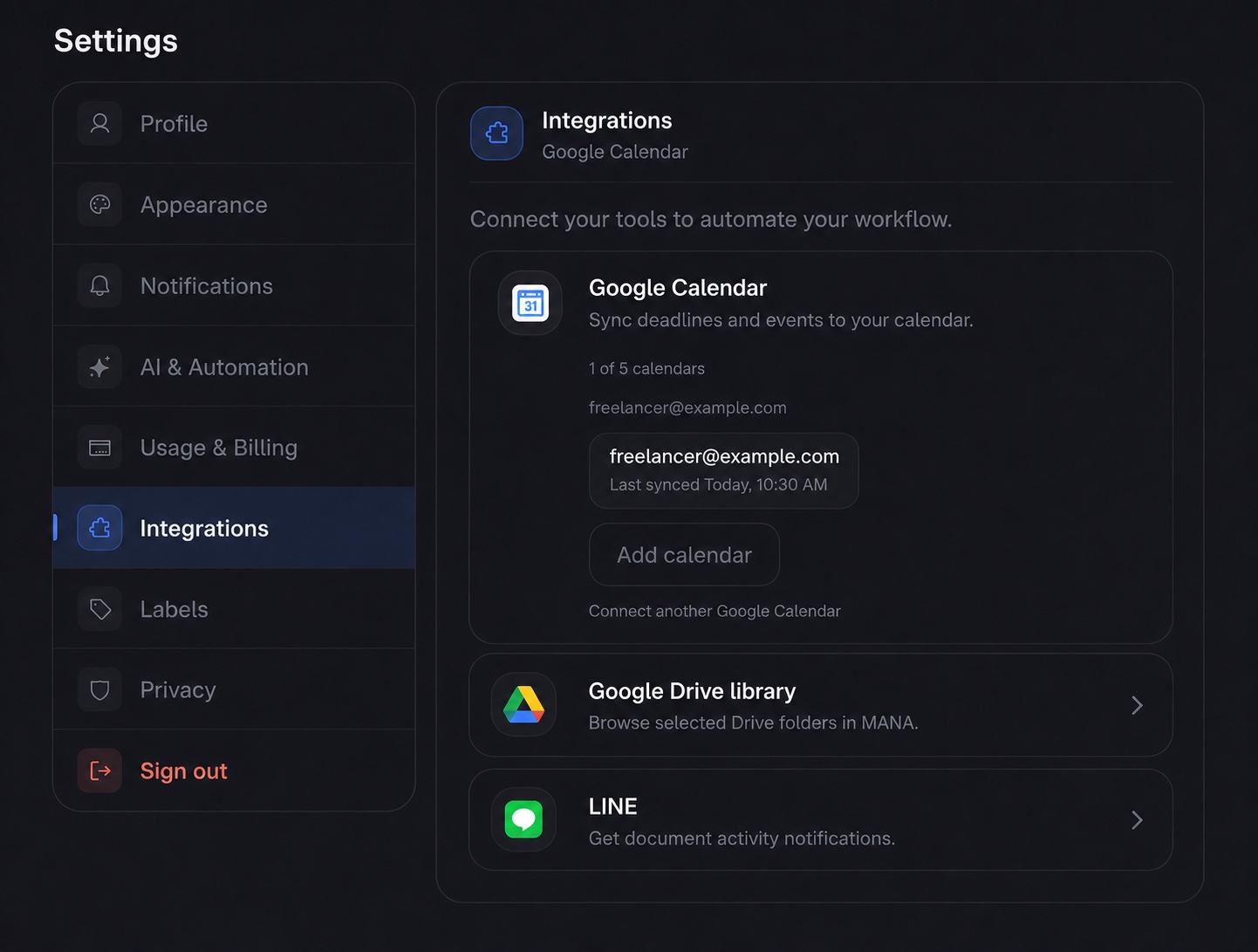
Go to Settings → Integrations, find LINE, and press Connect.
- 2
Add MANA on LINE
Press Add friend in step 1 and add the MANA Official Account.
- 3
Send the short code
Press Open LINE & send — the six-character code is already typed into the chat, so you only press send. On a computer, scan the QR code to do the same from your phone. The code expires after 15 minutes, and MANA checks for the connection automatically.
- 4
Choose and save alerts
Expand the connected LINE card, switch the events you want on or off, then press Save changes.
Available LINE alerts
Quotation
Viewed, accepted, or rejected.
Invoice
Viewed by the client.
Receipt
Viewed by the client.
Automation
A recurring document draft is ready.
Each message contains a title, status, and a link back to MANA. LINE delivery is best-effort and never blocks the document action that created it.
Troubleshooting
The code expired
Return to MANA and press Connect again. A fresh code is valid for 15 minutes.
The connection stays pending
Confirm that you added the MANA Official Account and sent the code as a message in that chat.
LINE is connected but silent
Expand the connected LINE card, enable the event you need, and press Save changes. Also confirm the MANA Official Account is not blocked in LINE.
MANA says LINE is not configured
This is a service-side setup issue rather than an account issue. Contact MANA support.
Disconnect
Expand the connected LINE card and press Disconnect. This removes the link to your LINE user and stops future LINE alerts. Your notification choices in other channels are unchanged.